Whether you are a first-time Copilot user looking to save hours each week or an IT administrator responsible for deploying and securing AI across your organization, this guide has you covered. Microsoft 365 Copilot is not just a chatbot — it is a context-aware AI assistant embedded directly into the tools your team already uses, from Outlook to Excel to Teams.
Microsoft 365 Copilot combines the power of Large Language Models (LLMs) with your organization’s data through Microsoft Graph — the intelligence layer that connects your emails, meetings, chats, documents, and calendar. Unlike consumer AI tools, Copilot does not just know about the world; it knows about your work.
The result is an AI assistant that can draft an email referencing your last meeting, summarize a 50-page report in seconds, or generate a PowerPoint deck from a Word document — all within the security boundary of your Microsoft 365 tenant.
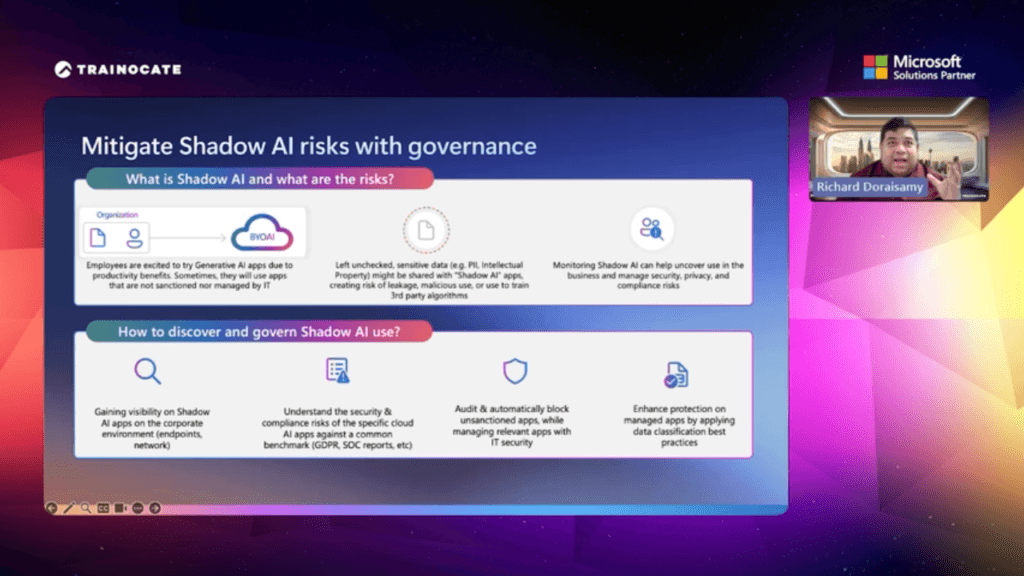
"75% of people are already using AI at work, and 78% of those users are bringing their own AI tools to the office (BYOAI)." — Microsoft Work Trend Index Report
This widespread adoption of unsanctioned AI tools — known as Shadow AI — is precisely why organizations need a governed, enterprise-grade solution like Microsoft 365 Copilot.
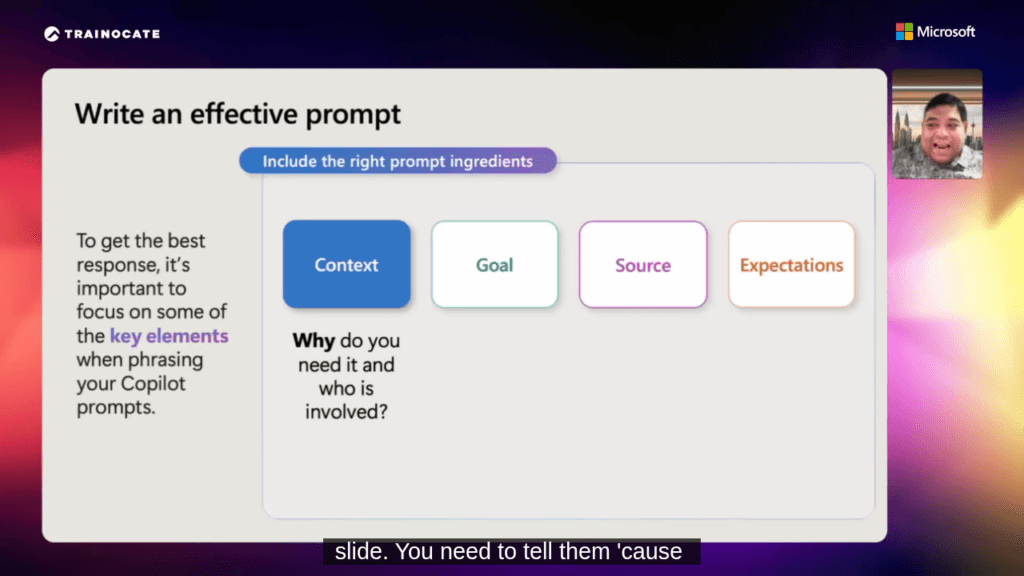
The single most important skill for any Copilot user is knowing how to write a good prompt. A well-structured prompt is the difference between a generic, unhelpful response and a precise, actionable output tailored to your exact needs.
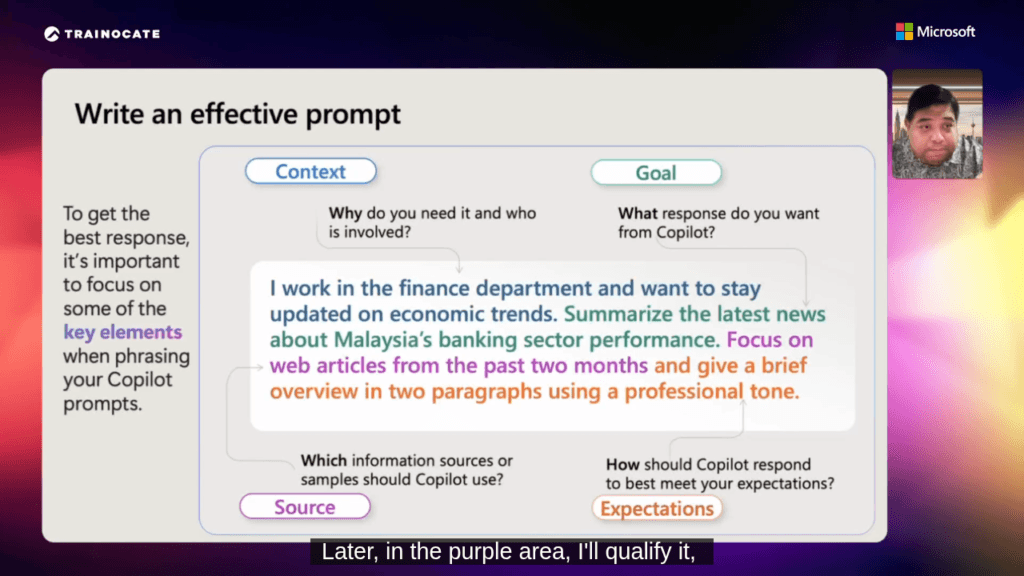
The GCSE Framework is the gold standard for crafting effective Microsoft Copilot prompts. It consists of four essential ingredients
| Element | Question to Ask Yourself | Example |
|---|---|---|
| G — Goal | What do I want Copilot to produce? | “Generate a job description” |
| C — Context | Why do I need it? Who is the audience? | “for a Senior Relationship Manager in a commercial bank” |
| S — Source | What data or documents should Copilot reference? | “Use internal role profiles and regional industry norms” |
| E — Expectations | What format, tone, or length do I expect? | “Max two pages, formal tone, structured sections” |
Applying the GCSE framework transforms a vague request into a powerful instruction.
Compare the two prompts below:
Without GCSE: “Write a job description for a Relationship Manager.”
With GCSE: “Generate a professional job description for a Senior Relationship Manager in a commercial bank specializing in corporate and SME clients; focus on credit portfolio management, compliance, and cross-selling financial solutions. Use references from leading banks’ role profiles, internal standards, and regional industry norms. Keep it concise (max two pages), formal tone, structured sections (summary, responsibilities, qualifications, KPIs).”
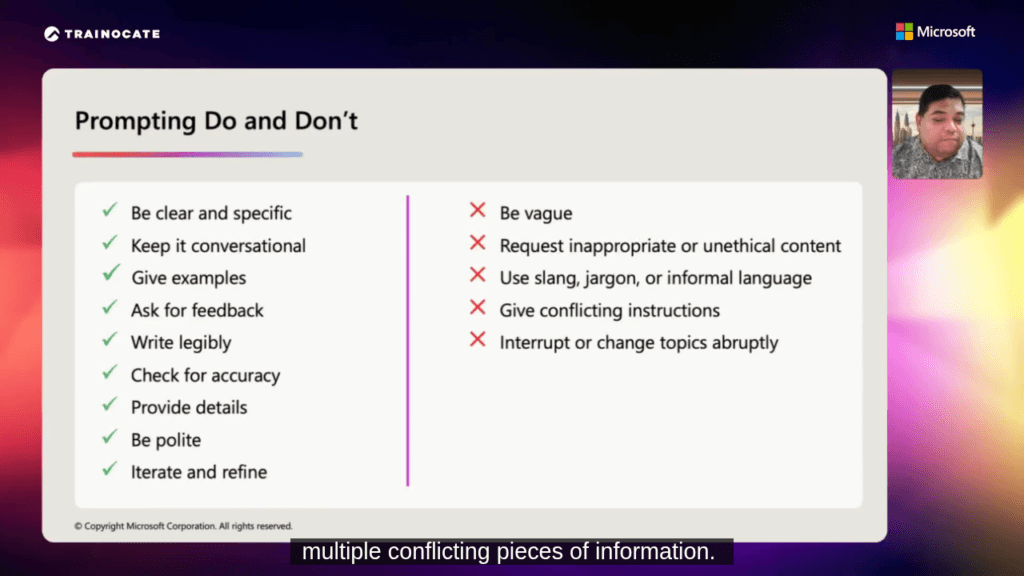
| ✅ Do | ❌ Don't |
|---|---|
| Be clear and specific about what you need | Be vague or leave out important context |
| Keep the conversation natural and iterative | Request inappropriate or unethical content |
| Provide examples to guide the output | Use excessive slang or informal language |
| Ask Copilot to review or improve its own output | Give conflicting or contradictory instructions |
| Always verify the accuracy of the response | Interrupt mid-task by abruptly changing topics |
| Iterate and refine your prompts over time | Treat the first response as final without review |
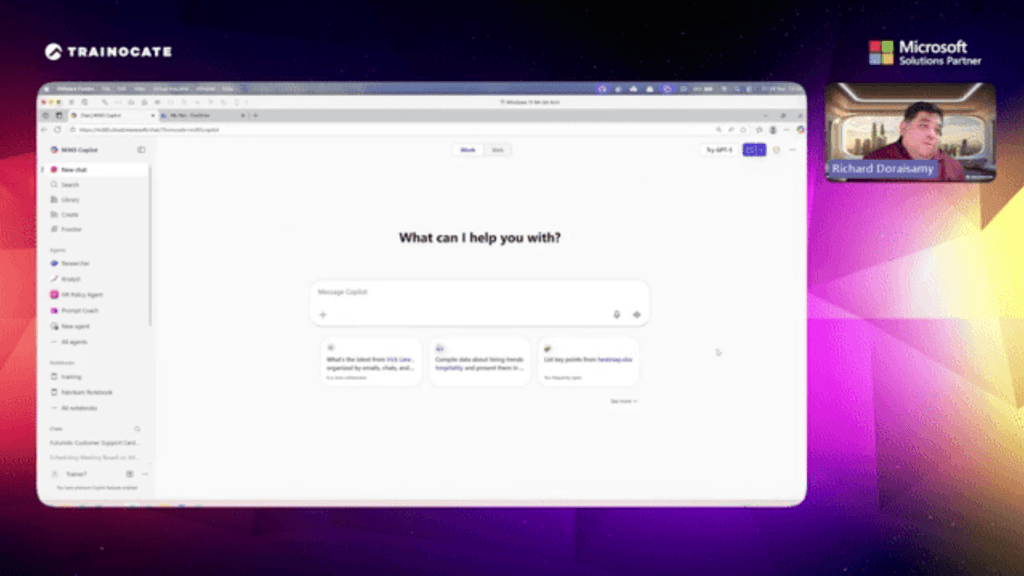
The central hub for your AI interactions is M365 Copilot Chat (accessible at m365.cloud.microsoft/chat). This standalone experience allows you to synthesize information across your entire Microsoft 365 ecosystem — emails, meetings, files, and chats — in one place.
Work Mode connects Copilot to your organizational data via Microsoft Graph. In this mode, Copilot can summarize your recent emails, surface relevant documents, and prepare you for upcoming meetings — all while keeping your data within the Microsoft 365 security boundary.
Web Mode transforms Copilot into a powerful research assistant with real-time internet access. It delivers structured research outputs with numbered sections and a dedicated sources panel, allowing you to verify citations from multiple websites.
Copilot Chat includes specialized AI Agents pre-configured for specific tasks:
| Agent | Best Used For |
|---|---|
| Researcher | Deep research tasks with cited sources |
| Analyst | Data analysis and structured insights |
| HR Policy Agent | Answering HR-related questions from policy documents |
| Prompt Coach | Learning how to write better Copilot prompts |
Email management is often the most time-consuming part of the workday. Copilot in Outlook acts as your personal communications manager, helping you draft, summarize, and prepare faster than ever before.
Drafting Emails: Use Copilot to draft responses or entirely new emails based on brief instructions. Apply the GCSE framework to specify the tone (e.g., professional, empathetic, concise) and the desired length. Copilot will generate a full draft that you can review and refine.
Summarizing Long Threads: For complex email chains with dozens of replies, Copilot can instantly generate a summary of the key points, decisions made, and pending action items — saving you from reading through every reply.
Meeting Preparation: Before a meeting, ask Copilot to summarize messages from a specific sender over the last 48 hours, or to extract the agenda from an email thread. This saves significant preparation time and ensures you arrive informed.
In Word, Copilot transforms the blank page from a daunting challenge into a collaborative workspace. Whether you are drafting a report from scratch or refining an existing document, Copilot can accelerate every stage of the writing process.
Content Generation: Ask Copilot to draft proposals, reports, or marketing copy. By referencing an existing document as the “Source” in your GCSE prompt, you ensure the new content aligns with your organization’s established style, tone, and facts.
Document Transformation: Copilot can rewrite sections to change the tone, make the text more concise, or expand brief bullet points into full paragraphs — ideal for adapting internal documents for external audiences.
Summarization: For lengthy documents, Copilot can instantly generate an executive summary that extracts the core arguments, key findings, and recommended actions — saving your stakeholders valuable reading time.
Data analysis becomes significantly more accessible with Copilot in Excel. Instead of navigating complex menus or writing formulas from memory, you can interact with your data using plain, conversational language.
Data Profiling: Ask Copilot to review your dataset, identify inconsistencies or missing values, and provide a summary of key performance insights — an excellent starting point before any deeper analysis.
Formula Generation: Describe what you want to calculate in plain English, and Copilot will suggest the appropriate Excel formula — complete with an explanation of how it works.
Visual Insights: Ask Copilot to recommend the most appropriate chart type for your data, generate it automatically, and highlight the top and bottom performers in your dataset.
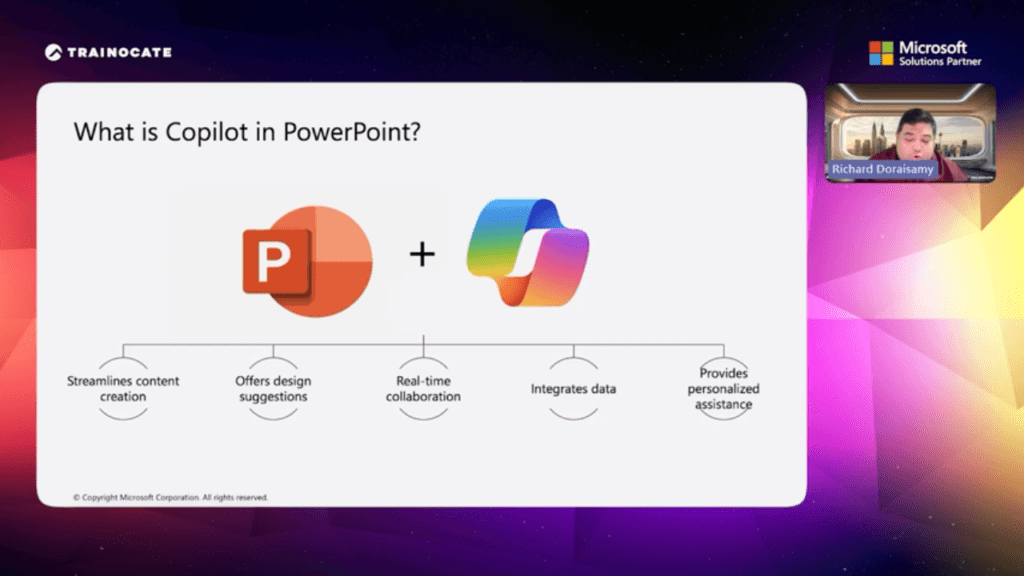
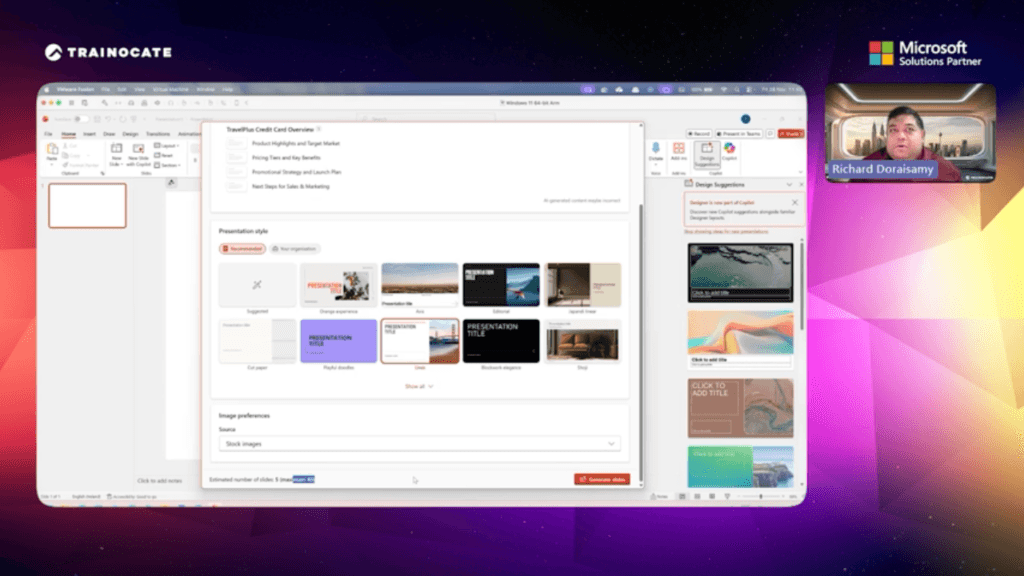
Creating compelling presentations is one of the most time-intensive tasks in any professional role. Copilot in PowerPoint dramatically reduces the effort required, from initial structure to final design.
Copilot in PowerPoint offers five core capabilities:
Copilot in Teams ensures you never miss critical information, whether you are actively participating in a meeting or catching up after the fact.
Meeting Summaries: If you join a meeting late, ask Copilot to summarize what you missed in real time. After the meeting ends, Copilot can generate comprehensive notes, a list of decisions made, and clearly assigned action items — eliminating the need for manual minute-taking.
Chat Synthesis: In busy Teams channels, ask Copilot to summarize the discussion over the past week, or to extract all decisions and action items related to a specific project or topic.
Real-time Assistance: During a live meeting, you can ask Copilot to list unresolved questions, identify areas of disagreement among participants, or suggest next steps — helping to guide the conversation toward a productive outcome.
Copilot’s capabilities extend powerfully into technical domains, making it a valuable tool for software development and quality assurance teams.
Test Case Generation: Provide Copilot with a feature requirement or user story, and ask it to generate comprehensive test cases — including positive scenarios, edge cases, and negative scenarios that might otherwise be overlooked.
Code Analysis: Use Copilot to review test scripts, identify potential bugs, suggest optimizations for automated testing frameworks, or explain what a complex piece of code does in plain language.
Documentation: Ask Copilot to draft test plans, write acceptance criteria, or summarize test execution results into professional reports suitable for non-technical stakeholders.
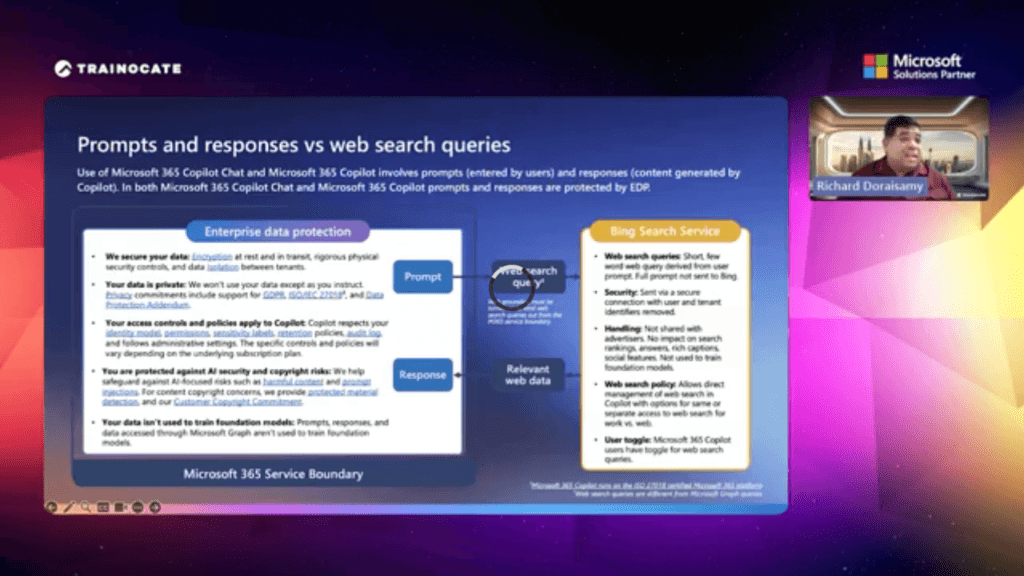
The most significant difference between Microsoft 365 Copilot and consumer AI tools is Enterprise Data Protection (EDP). When employees use unsanctioned “Shadow AI” applications, sensitive organizational data — including Personally Identifiable Information (PII) and Intellectual Property — can be inadvertently shared with third-party systems, creating serious compliance and security risks.
When using Microsoft 365 Copilot Chat in Work mode, all data remains within the Microsoft 365 Service Boundary. This provides three critical guarantees:
| Guarantee | What It Means |
|---|---|
| Data Privacy | All organizational data is encrypted at rest and in transit. Microsoft does not use your data to train its foundation models. |
| Access Controls Respected | Copilot inherits your organization's existing identity models, permissions, and sensitivity labels. If a user cannot access a file in SharePoint, Copilot cannot surface it either. |
| No Foundation Model Training | Your prompts, responses, and data accessed through Microsoft Graph are never used to train Microsoft's AI models. |
When web search is enabled in Copilot Chat, the query sent to the Bing Search Service is automatically stripped of user and tenant identifiers. The full internal prompt is never transmitted to Bing, ensuring your organizational context remains secure.
Shadow AI represents one of the most pressing security challenges for organizations today. The recommended four-step approach to governing Shadow AI use is:
The recommended best practice is to redirect users who attempt to access unapproved AI tools to an organizational message that guides them toward IT-sanctioned alternatives, such as Microsoft 365 Copilot Chat at m365copilot.com.
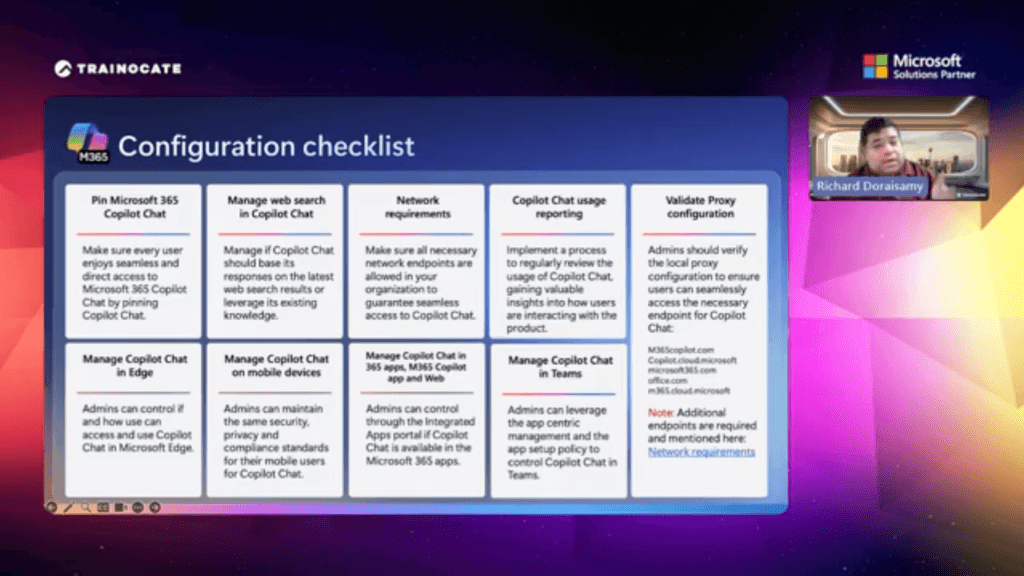
For IT administrators, deploying Copilot requires a structured approach to governance. Microsoft provides a comprehensive configuration checklist to ensure a smooth and secure rollout.
| Configuration Area | What Admins Must Do |
|---|---|
| Pin Copilot Chat | Ensure every user has seamless access by pinning Microsoft 365 Copilot Chat across Teams, Edge, and the Microsoft 365 app. |
| Manage Web Search | Decide whether Copilot Chat should draw on live web search results or rely solely on organizational knowledge. |
| Network Requirements | Verify all necessary endpoints are allowed: M365copilot.com, Copilot.cloud.microsoft, microsoft365.com, and office.com. |
| Validate Proxy Configuration | Ensure the local proxy configuration allows users to seamlessly reach Copilot Chat endpoints. |
| Usage Reporting | Implement a regular process to review usage analytics and understand how users are interacting with Copilot. |
| Manage in Microsoft Edge | Use Group Policy settings to control Copilot's behavior in the Edge sidebar. |
| Manage on Mobile Devices | Apply the same security, privacy, and compliance standards to mobile users. |
| Manage in M365 Apps & Web | Use the Integrated Apps portal to control Copilot Chat availability within Microsoft 365 apps. |
| Manage in Teams | Use app centric management and app setup policies to control Copilot Chat in Microsoft Teams. |
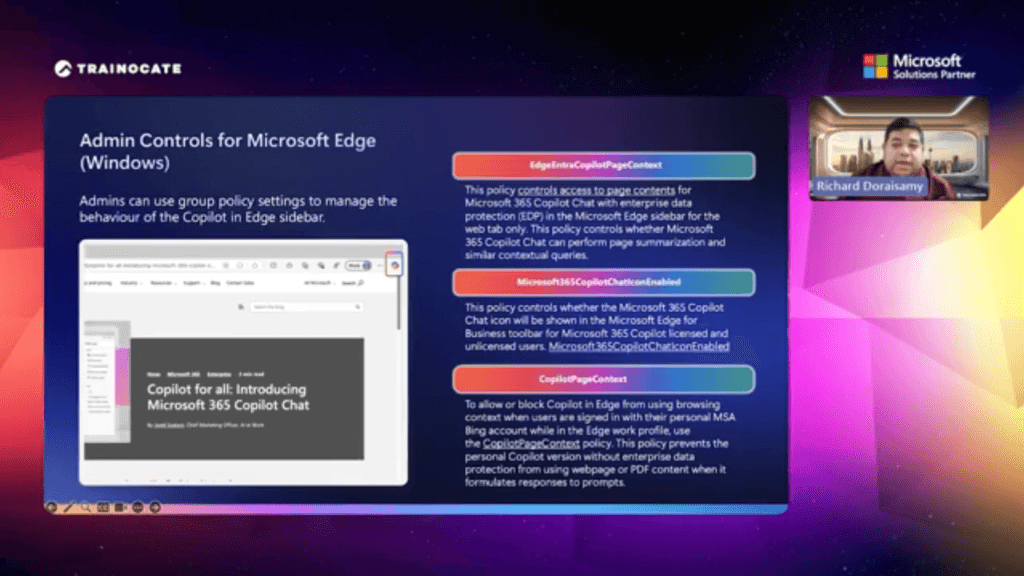
Administrators have granular control over how Copilot operates within the Microsoft Edge browser using Group Policy settings:
| Group Policy | What It Controls |
|---|---|
| Edge Entra Copilot Page Context | Controls whether Copilot Chat with EDP can perform page summarization and contextual queries on the active web tab in the Edge sidebar. |
| Microsoft365 Copilot Chat Icon Enabled | Controls whether the Microsoft 365 Copilot Chat icon appears in the Microsoft Edge for Business toolbar, for both licensed and unlicensed users. |
| Copilot Page Context | Prevents the personal (consumer) version of Copilot from using webpage or PDF content when users are signed in with a personal Microsoft account in the Edge work profile. |
Visibility into how Copilot is being used is essential for managing AI adoption, demonstrating ROI, and maintaining compliance. Microsoft 365 provides robust tools for both purposes.
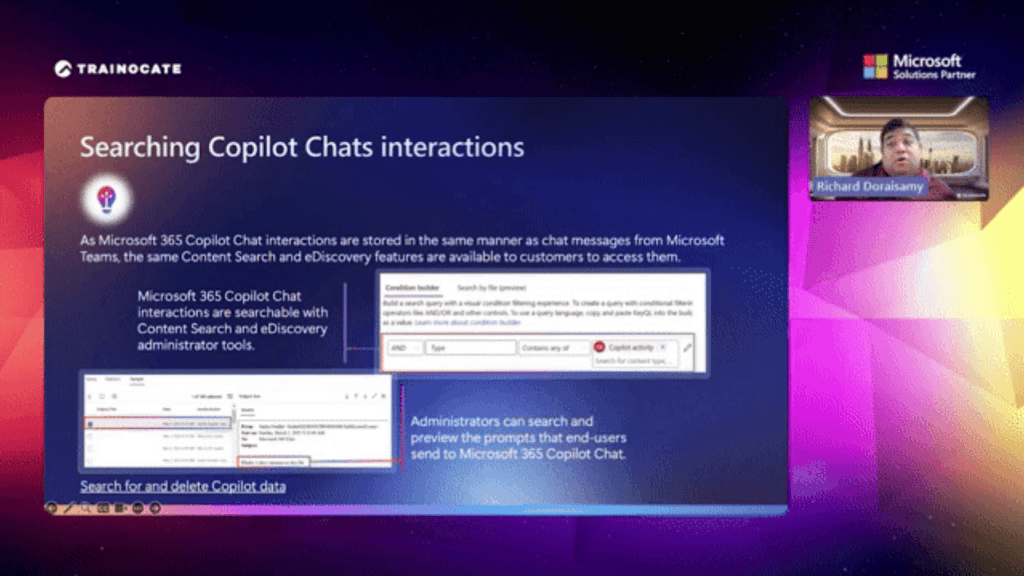
Because Microsoft 365 Copilot Chat interactions are stored in the same manner as Microsoft Teams chat messages, they are fully integrated into Microsoft Purview:
| Tool | What It Enables |
|---|---|
| Content Search | Search and preview the exact prompts that end-users are sending to Copilot — invaluable for compliance audits and legal discovery. |
| Condition Builders | Build precise queries filtering by "Copilot activity", specific users, date ranges, or interaction types. |
| Data Deletion | Permanently delete specific Copilot interaction data when required by data retention policies or legal obligations. |
Microsoft 365 Copilot represents a fundamental shift in how knowledge workers interact with technology. For end users, mastering the GCSE prompt framework and understanding the capabilities of Copilot across Outlook, Word, Excel, PowerPoint, and Teams can reclaim hours of productive time each week. For IT administrators, the combination of Enterprise Data Protection, a structured configuration checklist, and Microsoft Purview’s governance tools provides the confidence needed to deploy Copilot at scale — without compromising security or compliance.
The key insight is that Copilot is not an autopilot. It is a powerful assistant that amplifies human judgment. Always review its outputs, iterate on your prompts, and use your professional expertise to achieve the best results
We use technologies like cookies to store and/or access device information. This allows us to process data such as browsing behavior or unique IDs on this site. By continuing to use this site, you agree to be bound by our Terms & Conditions and Privacy Policy.